The Power of Chromecast: Stream Smarter, Not Smaller
In an age where screens dominate our daily lives, sometimes a phone or laptop just doesn't cut it. Trying to decipher a complex spreadsheet on a tiny smartphone display is a recipe for eye strain, and huddling around a small screen to share a viral video with friends simply isn't ideal. This is where Google Chromecast shines, transforming your viewing experience by effortlessly streaming content from your device directly to your television or even a compatible speaker.
Imagine pulling up a detailed DIY tutorial on YouTube via your phone and casting it onto your large living room TV – suddenly, following along becomes a breeze. Or perhaps you need to rehearse a work presentation, and projecting it from your laptop or Chromebook onto your smart TV allows you to get a better sense of how it will look. Chromecast makes these scenarios a reality, bridging the gap between your personal devices and the communal big screen. It operates by fetching content from a source device (like your smartphone) and broadcasting it onto a destination display (your TV), all without the clutter of wires. Instead, this magical connection relies entirely on a stable Wi-Fi network.
If you're ready to ditch the squinting and embrace the big screen for everything from casual browsing to intense workout videos, the first crucial step is to learn how to connect Chromecast to Wi-Fi. This guide will walk you through the entire process, leveraging the intuitive Google Home app to get your streaming setup running smoothly.
Step-by-Step Guide: How to Connect Chromecast to Wi-Fi with Google Home App
Connecting your Chromecast to your home Wi-Fi network is a straightforward process, primarily managed through the Google Home app on your smartphone or tablet. Before you begin, let's ensure you have everything in order.
Pre-Setup Checklist
- Your Chromecast Device: Ensure you have the Chromecast unit itself, along with its power adapter and USB cable.
- A Compatible Display: Your TV or speaker needs an available HDMI port.
- A Mobile Device: An iOS or Android smartphone or tablet will be used to set up your Chromecast.
- Google Home App: Download and install the Google Home app from your device's app store (App Store for iOS, Google Play Store for Android).
- Wi-Fi Network Information: Know your Wi-Fi network name (SSID) and its password.
- Bluetooth Enabled: Ensure Bluetooth is switched on on your mobile device during the setup process, as this helps the app discover your Chromecast.
- Same Wi-Fi Network: Make sure your mobile device is already connected to the same Wi-Fi network that you intend to connect your Chromecast to. This is a common pitfall that can cause issues during setup.
Connecting Your Chromecast for the First Time
Once you've confirmed all the items on the checklist, you're ready to initiate the connection process:
- Power Up Your Chromecast: Plug the Chromecast device into a power outlet using its provided adapter and USB cable. Then, insert the Chromecast into an available HDMI port on your television or speaker. Switch your TV to the corresponding HDMI input channel. You should see a Chromecast welcome screen.
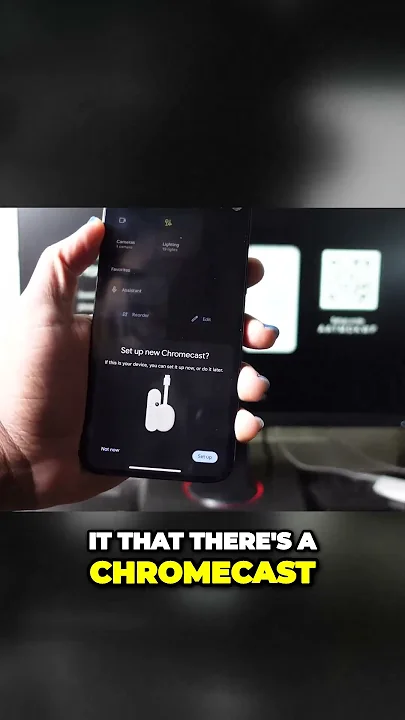
- Open the Google Home App: On your smartphone or tablet, launch the Google Home app. If this is your first time using the app, you may need to sign in with your Google account.
- Initiate Device Setup: The app should automatically detect a new Chromecast nearby. If it doesn't, tap the 'Devices' icon (a house symbol with a gear) or the '+' (Add) button in the top left corner, then select 'Set up device' > 'New devices'.
- Select Your Chromecast: The app will scan for nearby devices. Once your Chromecast appears in the list, tap on it to select it.
- Confirm Connection: The app will display a code on your mobile device and on your TV screen. Confirm that these codes match, then tap 'Yes' on your mobile device.
- Choose Your Location and Name: Follow the on-screen prompts to select the room where your Chromecast is located (e.g., Living Room, Bedroom) and give it a unique name. This helps with organization, especially if you have multiple Google Home devices.
- Connect to Wi-Fi: This is the crucial step to connect Chromecast to Wi-Fi. The app will ask you to choose a Wi-Fi network. Select your home Wi-Fi network from the list. If prompted, enter your Wi-Fi password carefully. Double-check for typos.
- Final Confirmation: The Google Home app will now attempt to connect your Chromecast to the chosen Wi-Fi network. Once successful, the app will confirm that your Chromecast Wi-Fi connection is working correctly. Your TV screen should also update, indicating it's ready to cast.
Congratulations! Your Chromecast is now linked to your Wi-Fi network and ready for streaming. If the Chromecast doesn't appear during step 4, try restarting your mobile device, closing and reopening the Google Home app, or moving closer to your Chromecast and Wi-Fi router.
Reconnecting or Changing Networks: Keeping Your Chromecast Connected
Life happens, and sometimes your Wi-Fi environment changes. Whether you've updated your home network's password, installed a new router, or simply want to take your Chromecast to a friend's house or a hotel, you'll need to update its Wi-Fi settings. The process for reconnecting or switching networks is surprisingly simple, primarily involving telling your Chromecast to "forget" its old network and then guiding it to the new one.
Updating After a Wi-Fi Password Change
If you've recently changed your Wi-Fi password, your Chromecast will lose its connection because it's still trying to connect with the old credentials. Here's how to update it:
- Open the Google Home App: Launch the app on your smartphone or tablet.
- Access Chromecast Settings: On the main screen, you should see a tile for your Chromecast. Long-press on this tile. This will take you directly to its settings.
- Forget the Old Network: Tap on the 'Settings' icon (gear symbol) in the top right corner. Scroll down and tap on 'Device information'. Under the 'Wi-Fi' section, select 'Forget this network'. This action erases the old Wi-Fi credentials from your Chromecast's memory, making it available for a fresh connection.
- Restart Setup: Once the network is forgotten, return to the Google Home app's home screen. Your Chromecast will now appear as a "new device" needing setup, or you can manually initiate setup by tapping the '+' (Add) button > 'Set up device' > 'New devices'.
- Reconnect to Wi-Fi: Follow the original setup instructions outlined in "Connecting Your Chromecast for the First Time" above (specifically steps 4-8) to connect to your Wi-Fi network with the new password.
This process ensures your Chromecast is wiped clean of outdated information and can properly reconnect to your network after a password change or to an entirely new network.
Connecting to a Completely New Wi-Fi Network
The beauty of Chromecast is its portability. You can easily take it to a friend's house, your office, or even a hotel (with a few extra steps for captive portals). The process for connecting to a completely new Wi-Fi network is identical to updating after a password change:
- Open the Google Home app.
- Long-press on your Chromecast tile.
- Go to Settings > Device information.
- Select Wi-Fi and tap 'Forget this network'.
- Return to the Home screen and begin the new device setup process, choosing the new Wi-Fi network and entering its password when prompted.
For specific guidance on challenging networks, such as those found in hotels or dorms that require a browser login, be sure to consult our detailed guide on Connecting Chromecast to Hotel Wi-Fi: Hotspot Guide.
Troubleshooting Common Chromecast Connection Issues
Even with the most detailed instructions, sometimes things don't go as planned. If you've followed all the setup steps and your Chromecast still won't connect to Wi-Fi, don't despair. Here are some common troubleshooting steps to get you back to streaming:
- Check Physical Connections: Ensure the Chromecast is securely plugged into both the power outlet and the HDMI port on your TV. Sometimes a loose connection is the culprit.
- Verify Wi-Fi Network: A common mistake is trying to connect your Chromecast to a different Wi-Fi network than your mobile device. Double-check that your phone/tablet is connected to the same 2.4GHz or 5GHz Wi-Fi network that you intend for your Chromecast. Remember, older Chromecast models might only support 2.4GHz networks.
- Restart Everything: The classic tech support advice often works. Try restarting your Wi-Fi router, then your Chromecast (unplug it for 30 seconds and plug it back in), and finally, restart your mobile device and the Google Home app.
- Proximity Matters: Bring your Chromecast, mobile device, and Wi-Fi router closer to each other during the setup process. Obstacles and distance can weaken Wi-Fi signals.
- Disable VPNs or Firewalls: If you have a VPN active on your mobile device, temporarily disable it during the Chromecast setup, as it can interfere with local network communication. Similarly, check if your router's firewall settings are overly restrictive.
- Check Router Settings (Advanced): Some routers have "AP isolation" or "Client isolation" enabled, which prevents devices on the same network from communicating with each other. This needs to be disabled for Chromecast to work. Consult your router's manual or ISP for instructions.
- Factory Reset Chromecast: As a last resort, performing a factory reset on your Chromecast can resolve persistent issues by reverting it to its out-of-the-box state. The method varies by model:
- For most Chromecasts: While the Chromecast is plugged in and powered on, press and hold the button on the device itself (often near the power port) for about 25 seconds, or until the LED light begins to flash.
- For Chromecast with Google TV: Go to the Google TV home screen, then navigate to Settings > System > About > Factory reset.
Troubleshooting requires a systematic approach. Go through these steps one by one, and you'll likely pinpoint and resolve the issue preventing your Chromecast from connecting.
Connecting your Google Chromecast to Wi-Fi using the Google Home app is generally a smooth and simple process, unlocking a world of big-screen entertainment and productivity. By following these detailed steps, from the initial setup to reconnecting after a password change or troubleshooting common issues, you can ensure your Chromecast remains seamlessly integrated with your home network. A stable Wi-Fi connection is the backbone of the Chromecast experience, so investing a little time to get it right will lead to countless hours of effortless streaming. Enjoy the convenience of casting your favorite content and truly making the most of your display!